Looking for your ChatGPT invoice or receipt? OpenAI's billing page is famously hidden — there's no link to it from the ChatGPT interface, no email at renewal, and no obvious path from your account menu. This page shows you the buried URL, explains the different billing portals for Plus, Team, Enterprise, and API users, and lets you generate a clean, properly-formatted ChatGPT receipt for expense reimbursement in seconds.
ChatGPT Receipt & Invoice
Add custom logo
Edit line items
Choose payment method
Add/remove elements
Customize business information
Choose font
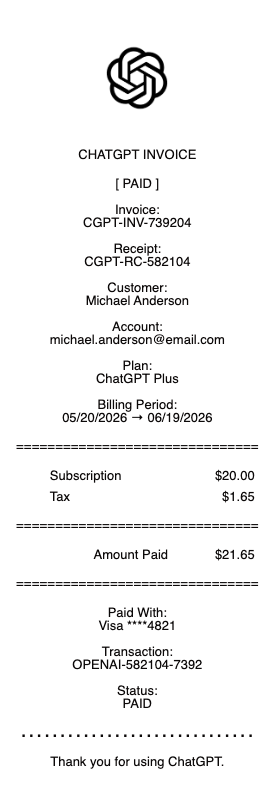
Where ChatGPT Hides Your Invoices — and Why the Official Path Often Falls Short
ChatGPT Plus invoices are one of the most-searched billing problems on the internet — Ahrefs shows over 3,500 monthly US searches for variations of "how to find / download ChatGPT invoice." The reason: OpenAI doesn't link to billing from the ChatGPT app or settings menu. The Reddit thread "How to find the hidden invoices / receipts in ChatGPT" sums up the experience.
The actual URLs are:
ChatGPT Plus (personal) — chatgpt.com/admin/billing (you must be logged in)
ChatGPT Team — workspace settings → billing
ChatGPT Enterprise — handled by your admin or OpenAI account manager
OpenAI API / Playground — platform.openai.com/account/billing — completely separate from ChatGPT subscription billing
Even when you find the right portal, the invoice is issued by Stripe on OpenAI's behalf and lacks several fields business users routinely need: a customer name in your company's format, full company address, VAT registration ID for international users, and clear line items beyond "ChatGPT Plus subscription." For most expense reports it's adequate; for finance teams with strict invoice format rules, it isn't. Generating a properly-formatted replacement receipt is faster than navigating OpenAI's three-step support flow to get the invoice changed.
What's on an Official ChatGPT Invoice
A standard ChatGPT Plus Stripe-issued invoice includes:
Invoice number (Stripe format, e.g. F45A23B-0001)
Billing date and service period
OpenAI, L.L.C. as the merchant, with the US business address
Customer email (usually the only customer-side info)
Description: "ChatGPT Plus Subscription" or "ChatGPT Team" plus the seat count for team plans
Amount: $20/month for Plus, $25–30/seat for Team, custom pricing for Enterprise
Tax: applied by your region — US sales tax by state, EU VAT for European users, GST for Australia/India, etc.
Payment method: last four of card or PayPal account
Notably missing from the default invoice: customer business name (unless you set it under billing settings), full billing address, project or cost-code reference, and any internal PO number your company may require.
How to Add Your Business Name and Address to ChatGPT Invoices
You can add a company name and address to future ChatGPT invoices through the billing portal:
Go to chatgpt.com/admin/billing (logged in)
Click Payment methods or Billing details
Add or edit the Billing name, Address, and Tax ID fields
Save — changes apply to future invoices only, not past ones
This is the biggest practical gap: past invoices cannot be retroactively edited. If you've been billed personally for six months and your finance team requires the company name on every invoice, OpenAI cannot reissue old receipts. The standard workaround is to generate properly-formatted replacement receipts for past months using the original charge amounts.
ChatGPT Plus vs Team vs Enterprise vs API — Different Invoice Systems
OpenAI has four largely separate billing pipelines:
ChatGPT Plus ($20/month personal): individual Stripe invoice per renewal, customer email only
ChatGPT Team ($25–30/seat, minimum 2 users): workspace-level monthly invoice showing seat count, admin-managed
ChatGPT Enterprise (custom annual contract): invoiced separately by OpenAI sales, often via wire transfer with custom terms
OpenAI API / Developer Platform (usage-based): credit-based prepayment or auto-recharge, invoices at platform.openai.com
Many users have both a ChatGPT Plus subscription and a separate API usage account — and the two have completely independent billing portals, payment methods, and invoice formats. If you're trying to reconcile two card charges from "OpenAI" on the same statement, this is why.
VAT, GST, and International ChatGPT Invoices
For international business users, OpenAI charges local VAT/GST: 20% in the UK, 21% Netherlands, 19% Germany, 7% Singapore, 5% India, etc. To reclaim VAT, your business needs an invoice showing OpenAI's VAT registration in your jurisdiction plus your company's VAT ID. As of 2025, OpenAI does accept business tax IDs entered into the billing portal — but again, only future invoices include them. If a past invoice is missing your company's VAT registration, generate a properly-formatted replacement to keep for your records (most tax authorities accept supplemental documentation alongside the original).
Refunds, Downgrades, and Cancellation Receipts
If you cancelled ChatGPT Plus mid-month, OpenAI's policy is to keep the subscription active through the end of the billing period and not issue a partial refund. If a refund is granted (rare, usually for billing errors), it shows on your billing page as a separate negative-value invoice. Downgrading from Team to Plus, or from Plus to free, generates a final-period invoice for the prorated portion in some cases — confusing for expense reconciliation. For audit-ready documentation, save the original invoice plus the refund/credit invoice together with a brief note explaining the relationship.
Generate a Properly-Formatted ChatGPT Receipt
Use the generator above to create a clean ChatGPT receipt for expense reimbursement, business records, or tax documentation. Add your company name, full billing address, VAT or tax ID, and any internal reference number your finance team needs — none of which OpenAI's default invoice includes by default. Download as PDF or PNG in seconds.
Why ChatGPT Doesn't Email You an Invoice at Renewal
Unlike most SaaS products, OpenAI does not email a receipt or invoice each time your ChatGPT Plus subscription renews. The charge happens silently in the background, and the invoice is generated as a PDF that sits in your billing portal waiting to be downloaded — but never delivered to your inbox. This is by design, not a bug: OpenAI considers billing communication an "opt-in" feature you must configure. For business users, this means a $20 charge appears on your card statement every month with no documentation pushed to you. The result is the most-searched ChatGPT billing problem — "where do I find my ChatGPT invoice" generates over 3,500 searches per month in the US alone.
ChatGPT Team Plan — Why the Admin Sees Different Invoices Than Members
If your company uses ChatGPT Team ($25–30/seat/month, minimum 2 seats), only the workspace admin can see and download invoices. Individual team members have no access to billing, even for their own seat. This is the standard SaaS pattern but causes friction in companies where finance and the workspace admin are different people. The Team invoice is workspace-level (showing total seat count and total amount), not per-user — so if you need to allocate ChatGPT cost back to specific employees or departments for internal chargeback, you'll need to do that math separately. Generate per-user receipts allocating each seat's portion if your accounting system requires individual user-level documentation.
ChatGPT API Billing Is Completely Separate — Don't Confuse the Two
OpenAI has two unrelated billing systems that confuse newcomers regularly. ChatGPT Plus is your $20/month conversational AI subscription at chatgpt.com. OpenAI API is your usage-based developer access at platform.openai.com — pay-as-you-go credits for GPT-4, Whisper, DALL-E, etc. The two have different portals, different payment methods, different invoice formats, and different tax treatment. If you see two OpenAI charges on your card statement, one is likely each. Reconciling them requires logging into both chatgpt.com/admin/billing AND platform.openai.com/account/billing — invoices from one do not appear in the other.
The "ChatGPT Plus Invoice" Trap on Stripe — Why Your Customer Field Says Your Personal Email
Stripe handles OpenAI's payment processing, and the default Stripe invoice template populates the Customer field with whatever email is on your OpenAI account — not your business name. For freelancers and contractors expensing ChatGPT Plus to a client, this creates a problem: the invoice technically shows the work as billed to "personal-email@gmail.com" rather than your business or client. The fix is to edit the billing name in chatgpt.com/admin/billing before the next renewal — but past invoices remain unchangeable. For past months, generate a properly-formatted replacement receipt with the correct customer name for your client billing or expense submission.
Generate a Properly-Formatted ChatGPT Receipt — Free, No Login
Our ChatGPT receipt generator creates a clean, expense-ready invoice with every field OpenAI's default Stripe-issued invoice often lacks: your company name in the format your finance team requires, full business address, VAT or tax ID for international tax recovery, internal PO or project reference number, and properly itemized service description. Works for ChatGPT Plus ($20/month), Team (per-seat), Enterprise (annual), and API usage charges. Especially useful when past months' invoices were issued to a personal email instead of your business, when your finance team requires a customer name OpenAI never collected, when reclaiming VAT internationally and the original invoice is missing your tax ID, or when reconciling separate ChatGPT subscription and API usage charges on the same card statement. Download as PDF or PNG in seconds. Always pair with the original Stripe invoice from chatgpt.com/admin/billing for full audit transparency.
Frequently
asked questions
Everything you need to know about the product and billing.
Where do I find my ChatGPT Plus invoice?
OpenAI does not link to billing from the ChatGPT app or any settings menu — the URL is hidden. Go directly to chatgpt.com/admin/billing while logged in. You'll see your subscription history with downloadable PDF invoices for each past renewal. For ChatGPT Team plans, the workspace admin accesses billing through workspace settings. For OpenAI API charges (separate from ChatGPT Plus), go to platform.openai.com/account/billing — completely separate portal.
Why doesn't OpenAI email me a receipt when ChatGPT Plus renews?
OpenAI does not automatically email invoices on renewal — unlike most SaaS products. The charge happens silently and the invoice is generated as a PDF that sits in your billing portal waiting for download. This is by design, not a bug. The result: a $20 ChatGPT Plus charge appears on your card statement each month with no documentation pushed to your inbox. You have to manually log in to chatgpt.com/admin/billing each time you need the invoice.
Can I add my company name and address to my ChatGPT invoice?
Yes — but only for future invoices. Go to chatgpt.com/admin/billing, click Payment methods or Billing details, and add the Billing name, Address, and Tax ID fields. Past invoices cannot be retroactively edited — if you've been billed for six months personally and your finance team requires the company name on every invoice, OpenAI cannot reissue old receipts. Generate properly-formatted replacement receipts for past months as supplements to the original Stripe invoices.
What's the difference between ChatGPT Plus and OpenAI API billing?
Two completely separate systems. ChatGPT Plus ($20/month) is your conversational AI subscription at chatgpt.com — billed through chatgpt.com/admin/billing. OpenAI API is usage-based developer access (GPT-4, Whisper, DALL-E) at platform.openai.com — billed through platform.openai.com/account/billing. Different portals, different payment methods, different invoice formats. If you see two OpenAI charges on your card statement, one is likely each.
Can I reclaim VAT on my ChatGPT subscription as a business expense?
Yes, if you're a VAT-registered business in a country where OpenAI charges VAT (UK, EU, Australia, India, Singapore, etc.). To reclaim, your invoice must show OpenAI's VAT registration in your jurisdiction plus your company's VAT ID. Add your business VAT ID in chatgpt.com/admin/billing — future invoices will include it. Past invoices cannot be retroactively corrected, but most tax authorities accept supplemental documentation alongside the original.
Can ChatGPT itself generate a receipt for me?
ChatGPT can write text that looks like a receipt, but it cannot pull your real billing data, format it as a PDF, or produce a document with proper invoice structure. The third-party custom GPTs you may have seen ('Receipt Generator AI', 'E-Receipt Generator AI') are limited templates with no access to your actual ChatGPT subscription data. For a properly-formatted, downloadable PDF receipt that matches your real charges, use the generator on this page — fill in the fields and download instantly.