A DoorDash receipt is the itemized record of a delivery order — the food, taxes, delivery and service fees, any Dasher tip, and DashPass savings that make up your total. Whether you need it for an expense report, a reimbursement, a refund dispute, or just your own records, this guide shows how to find, download, print, or email a DoorDash receipt, and explains every line so you know exactly what you paid for.
DoorDash Receipt
Add custom logo
Edit line items
Choose payment method
Add/remove elements
Customize business information
Choose font
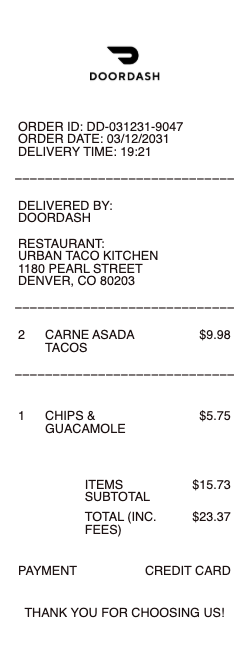
What's on a DoorDash receipt
A DoorDash receipt breaks your order into more lines than a normal restaurant bill, because delivery adds its own charges:
Itemized food & subtotal — each dish, add-on, or substitution with its menu price, totaled into the subtotal.
Taxes — sales tax on the food and, in some areas, local delivery taxes.
Delivery Fee — the charge for the Dasher's trip, which varies by restaurant, distance, and demand.
Service Fee — a percentage-based platform fee on the subtotal.
Small Order Fee — added when the subtotal falls below the restaurant's minimum.
Dasher tip — the optional gratuity, which goes to your driver.
DashPass savings, promos & credits — $0 delivery fee and reduced service fees for DashPass members, plus any promo codes or account credit applied.
Total charged & payment method — the final amount and the card, PayPal, or DoorDash credit used.
How to find and get your DoorDash receipt
DoorDash keeps a receipt for every completed order in your account history. In the app: tap Orders, choose the order, and select View Receipt to see the full itemized breakdown. On a computer: sign in at doordash.com, open the menu, and go to Orders to open the same receipt. DoorDash also emails an order confirmation and receipt to the address on your account, so searching your inbox for “DoorDash” is often the fastest way to find an older order. There's no separate “receipt lookup” portal — every receipt lives under your Orders history, which is why placing orders through a signed-in account, rather than as a guest, matters for record-keeping.
How to download, print, or save a DoorDash receipt as a PDF
Need a copy to file? Open the order receipt on doordash.com in a browser, then use your browser's Print command and choose “Save as PDF” — that produces a clean, shareable PDF you can attach to an expense report. To print, send that same page to your printer. From the app, the quickest route is a screenshot of the itemized receipt, though a browser PDF looks more professional for reimbursement. The emailed receipt can also be forwarded or printed directly. If you need the fully itemized breakdown that a card statement doesn't show, the in-app receipt for the order is the most detailed version DoorDash provides.
Using a DoorDash receipt for expenses, reimbursement, and refunds
DoorDash receipts are commonly used to claim a business meal, get reimbursed by an employer, or document a refund dispute when an order arrives wrong or incomplete. Each of those needs an itemized receipt — not just the card charge — because finance teams need to see the food, fees, and tip separately. Business users can order through DoorDash for Business (Expensed Meals), which centralizes receipts and can email them automatically. If an order was incorrect, the receipt is your evidence when you request a refund or credit through DoorDash support. Keeping the itemized PDF, rather than a faded email, makes every one of these far smoother.
Related food delivery receipts: see also our Food Delivery receipt guide and our Uber Eats receipt guide.
Recreate a clean DoorDash-style receipt
If your original is lost, faded, or hard to read, our DoorDash receipt template and generator lets you reproduce a clear, itemized copy of an order you actually placed — with the food lines, taxes, delivery and service fees, tip, DashPass savings, and total laid out the way a delivery receipt should be — so you can file an expense or keep a readable record.
For legitimate record-keeping only. Creating a receipt for an order you didn't place, or to fake a refund, reimbursement, or delivery claim, is fraud. Use this tool solely to reproduce and organize your own genuine DoorDash orders.
Related receipts: reconstruct an Uber Eats receipt or a Grubhub receipt for other delivery apps.
Frequently asked questions
Everything you need to know about the product and billing.
How do I get a receipt from DoorDash?
Open the DoorDash app, tap Orders, select the order, and choose View Receipt — or sign in at doordash.com and open Orders. DoorDash also emails a receipt to your account email, so searching your inbox for “DoorDash” works for older orders.
How do I get a DoorDash receipt as a PDF?
Open the order on doordash.com in a web browser, use the browser's Print option, and select “Save as PDF.” That creates a clean, itemized PDF that's ideal for expense reports and reimbursement.
Why is my DoorDash total higher than the menu price?
Delivery adds separate charges on top of the food: a delivery fee, a percentage-based service fee, sometimes a small-order fee, taxes, and your optional Dasher tip. DashPass membership removes the delivery fee and lowers the service fee.
Can I get an itemized DoorDash receipt?
Yes. The receipt under your Orders history is itemized — it lists each food item, taxes, every fee, the tip, and any DashPass or promo savings, which is what most employers and finance teams require.
How do I find an old DoorDash order?
All completed orders stay in your Orders history in the app and on doordash.com, and the emailed confirmations are searchable in your inbox. Ordering while signed in, rather than as a guest, ensures the receipt is saved to your account.
Does DoorDash send a receipt by email?
Yes — a confirmation and receipt are sent to the email address on your DoorDash account for each order. You can forward or print that email, though the in-app or web receipt is usually the most detailed itemized version.